


Premium secure governance
Windows Update Blocker to controlled Windows Update
Windows Update Blocker orchestrates policy-grade control of wuauserv, UsoSvc, and BITS with real-time status visibility for administrators.
Built for compliance windows, VDI estates, and uptime-critical endpoints.

Assurance pillars
Three precision layers that keep update governance stable, auditable, and resilient.
Policy Integrity
Reversible enforcement with explicit audit trails and clear status feedback.
Speed
Fast service-state checks with minimal operational overhead.
Granular Governance
Fine-grained control over Windows Update services across fleets.
Why Choose Windows Update Blocker
Premium safeguards that keep systems stable and predictable.
Clean, No Bundles
No ads, no promos, and no bundled installers.
Zero Idle Footprint
No background agents and negligible idle CPU usage.
Persistent Lock
Prevents Windows from re-enabling services after policy lock.
How it works
Aligned to the official UI flow for consistent execution.
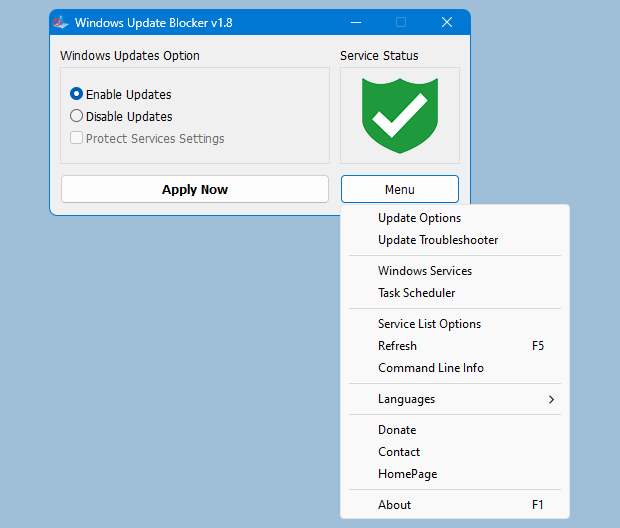
Step 1
Verify status
Red shield indicates blocked; green indicates enabled.
Step 2
Select Disable Updates
Choose the option that halts update services.
Step 3
Enable Protect Services Settings
Stops Windows from reverting service states.
Step 4
Apply Now
Applies changes immediately.
How to use - step by step
A concise four-step sequence operators can follow.
Confirm service status
The shield status shows green for enabled and red for blocked.
Select Disable Updates
Use this option to halt Windows Update services immediately.
Enable Protect Services Settings
Prevents automatic rollback of your changes.
Apply Now
Changes are enforced instantly without restart.
Manual vs Windows Update Blocker
A side-by-side view of manual edits versus governed protection.
| Service Area | Standard Windows | Windows Update Blocker |
|---|---|---|
| Safety posture | Manual registry edits are error-prone and drift over time. | Governed policy application with reversible protection. |
| Persistence | Services can re-enable after updates or reboots. | Policy lock keeps services controlled. |
| Speed | Manual changes are slow and repeated per device. | Instant validation and consistent rollout. |
What our users say
Feedback from IT admins and power users.
"No more surprise restarts during peak sessions. Windows Update Blocker v1.8 (Secure Edition) kept Windows 11 quiet and predictable."
Alex J., Gamer
"Managing office PCs is calmer now. The Protect Services option prevented repeated manual fixes and saved hours."
Sarah K., Office Manager
"Portable, clean, and reliable. I keep it on a service USB because it does exactly what it promises."
Michael D., Systems Admin
Windows Update Blocker v1.8
Windows Update Blocker is portable, free to use, and built for secure environments.
Download Details
- Release: 1.8 (Latest)
- Package Size: 1.2 MB
- Distribution: Portable ZIP
- Supported OS: Windows 11, 10, 8.1, 8, 7
- Developer: sordum.org
System Requirements
- Windows XP or newer
- 2 MB free disk space
- Administrator privileges recommended
- No installation required
a1b2c3d4e5f6789012345678901234567890abcdef1234567890abcdef1234567890Expert Answers & Support
Clear responses on security, policy behavior, and compatibility.
Is Windows Update Blocker suitable for enterprise use?
Yes. It applies reversible policy enforcement with audit-ready status indicators.
Does it change registry or Group Policy settings?
It can apply HKLM policy keys aligned with Group Policy when needed.
Which services are managed by default?
Primary targets include wuauserv, UsoSvc, and BITS.
Is Windows 11 (including 24H2) supported?
Yes. It supports Windows 10/11 and Server editions.
Do Microsoft Defender updates stop?
No. Defender updates are not blocked by default policies.
Can I revert to default behavior instantly?
Yes. Switching back restores normal update configuration.
Does it require installation?
No. It runs portably without installers or background agents.
Can it help gaming or live production performance?
Yes. It reduces unexpected update activity during sensitive sessions.
How do I verify the current state?
Status indicators show real-time service and policy state.
Is it compatible with Group Policy environments?
Yes. It complements GPO-based governance and remains reversible.
What if another update manager conflicts?
Disable third-party managers that override Windows Update settings.
Does it support Windows Server editions?
Yes. It supports Server editions where Windows Update services apply.
How to block other services
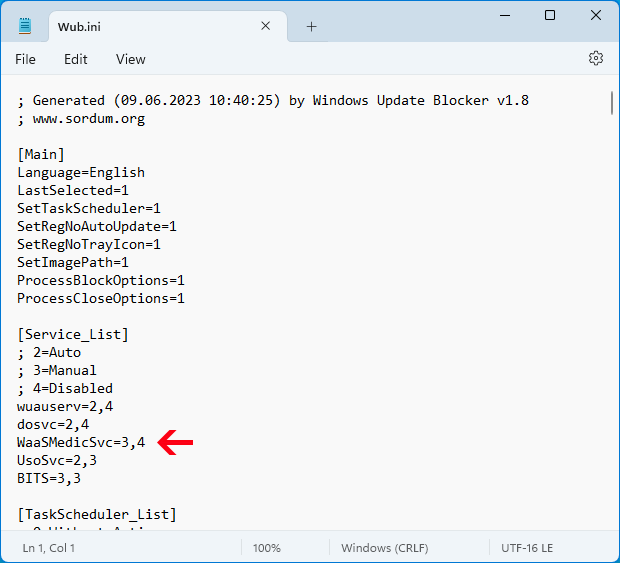
first please edit Wub.ini file and add your desired service name under the 'dosvc=2,4' line...
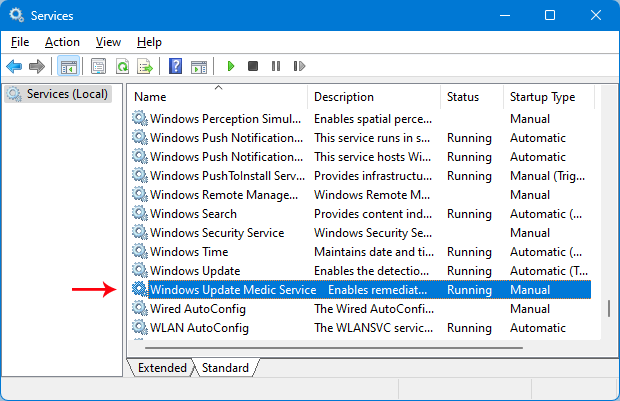
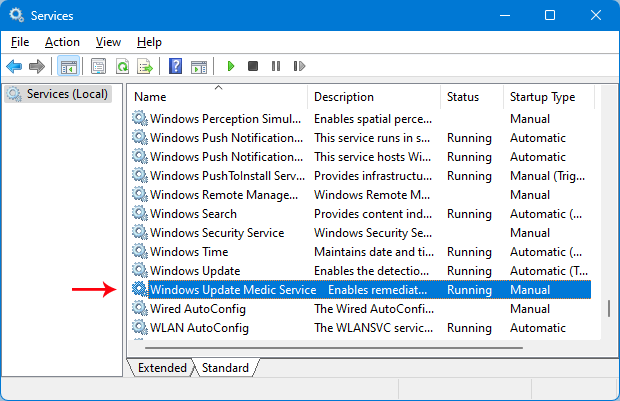
Open services and find it.
Open the Windows Services console and locate the service you want to block.
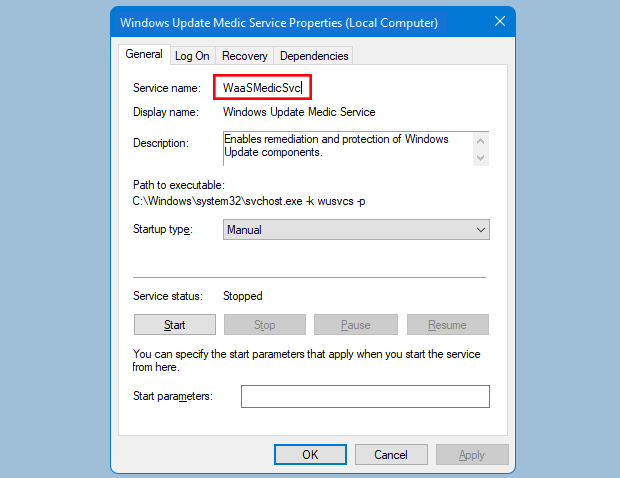
Click on it and copy the Service Name.
Open properties and copy the Service name field.
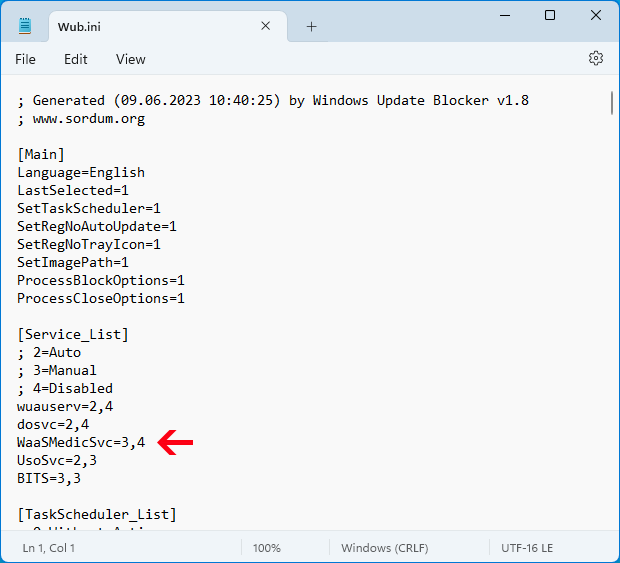
Paste under dosvc=2,4 in Wub.ini.
Add the service line under the Service_List section in Wub.ini.
Service restoration steps
1. Open Windows Update Blocker and choose the enable service option, then use the Apply Now button.

2. Delete your desired service line from the Wub.ini file.
3. Now you can choose disable service and Protect Services Settings options.
Privacy & legal information
Telemetry-free. Your configuration stays local. No data collection.